Official OBS Studio PluginNo Broadcast Interruptionsv0.7.1 · OBS ≥ 31.1.0 · Changelog
Add a delay against stream sniping with one key
Turn delay on or off on your stream with a single key or from your Stream Deck. Ideal for ranked matches and tournaments, without restarting OBS and with your voice always in sync.
Windows 10 / 11 (64-bit)
No stream interruptions
Your viewers never notice reconnections
Voice and game in sync
Audio and video always in phase
Stream Deck compatible
Trigger it with a single physical press
Light on your PC
Native C++, delay buffered in RAM
Panel built into OBS
Controls right in your window
Free to use
No subscriptions or sign-ups
When to use it
When do you need Dynamic Delay on your stream?
Designed for real situations where you need control over time on your stream.
Competitive & Ranked Matches
Stop rivals or stream snipers from watching your screen to learn your position. Turn on 30 seconds when you enter a match and remove it when you return to the lobby to talk with chat without lag.
Security & Moderation
Gain a reaction window to hide private data, emails or incidents before they go on air, switching scenes in time without cutting the broadcast.
Full Control with Stream Deck
Forget digging into OBS settings during a match. Assign a hotkey or a button on your Stream Deck and trigger it instantly with your hand on the keyboard.
How it works
How does it work in 3 steps?
- 1
Pick your scene in OBS
In the Dynamic Delay panel in OBS, select your usual live scene and how many seconds of protection you want (e.g. 30s).
- 2
Press your key or button
When you press your hotkey, OBS starts preparing the delayed segment in the background while your stream keeps broadcasting as normal.
- 3
Delay applied
As soon as the chosen time is up, OBS applies the delay automatically without your viewers noticing any pause.
Visual Guide
Install it in OBS
Follow these steps to get your panel ready in OBS Studio.
Needs OBS Studio 31.1 or newer. Check yours in OBS → Help → About; older versions won’t load the plugin.
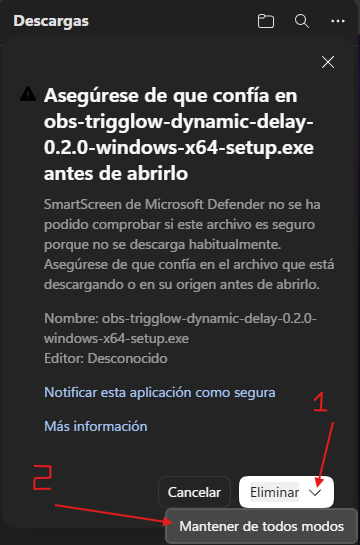
1. Download the fileIf your browser shows a confirmation warning when downloading, click "Keep" or "Keep file".
Click "More info" or "Keep anyway".
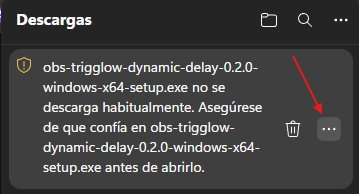
In the downloads list, open the options menu.
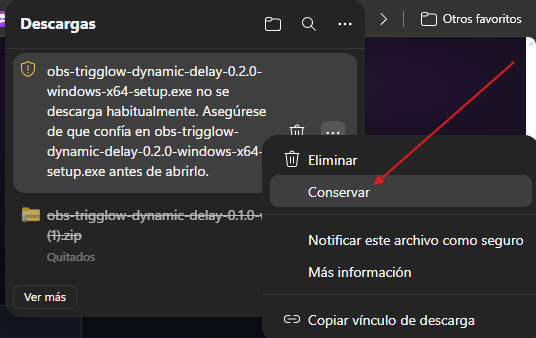
Select "Keep" to run the installer.
2. Installation WizardRun the installer, click next and restart OBS Studio when finished. If Windows shows “Windows protected your PC”, click “More info” and then “Run anyway”. It’s normal for new apps.
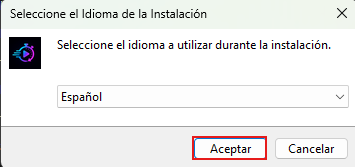
1. Select your language.
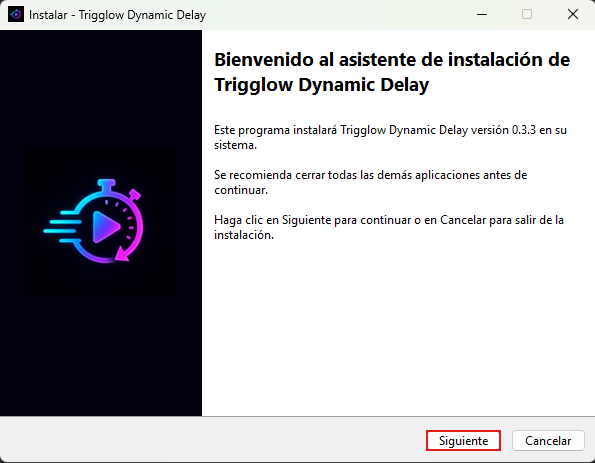
2. Click Next.
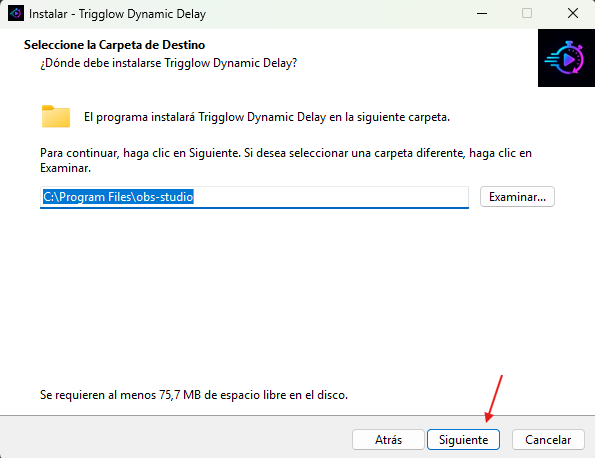
3. It detects OBS automatically.
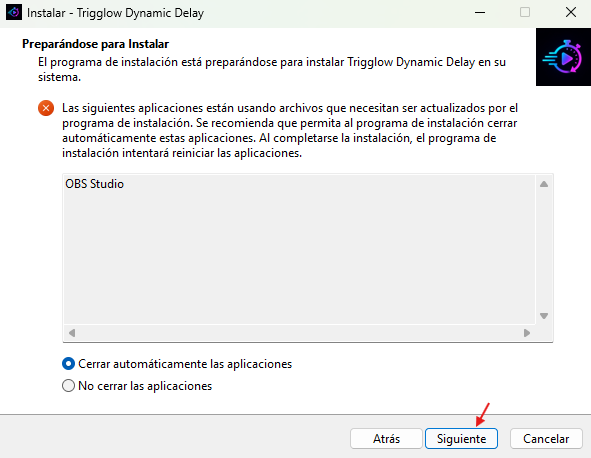
4. Close OBS if it is open.
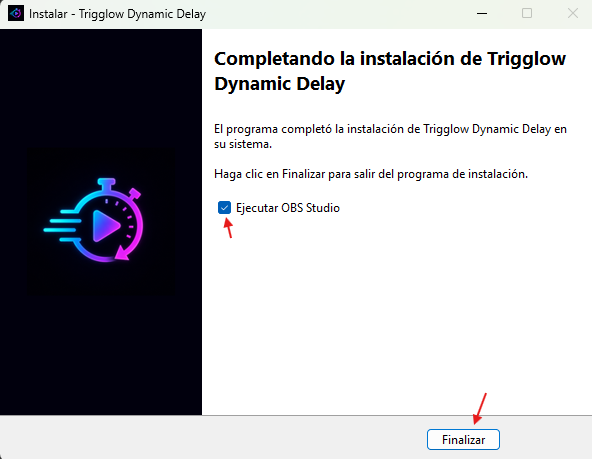
5. Finish the installation.
6. The plugin panel inside OBS.
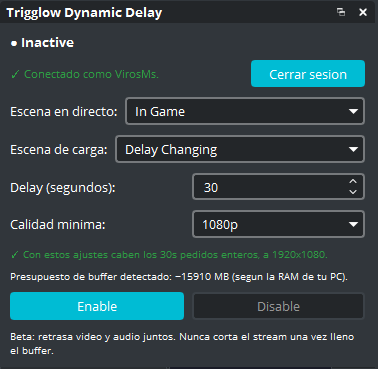
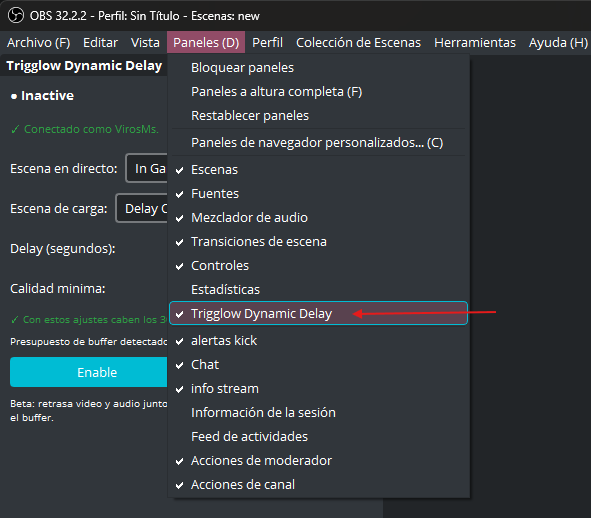
3. Show the Panel in OBS and Map a HotkeyGo to Docks → Trigglow Dynamic Delay and assign a hotkey from Settings → Hotkeys.
1. In OBS, go to "Docks" and check Trigglow Dynamic Delay.
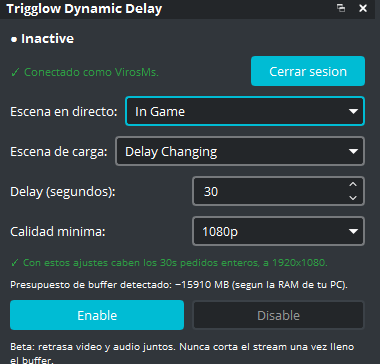
2. Set your live scene, the loading scene and the delay seconds.
3. Go to Settings → Hotkeys.
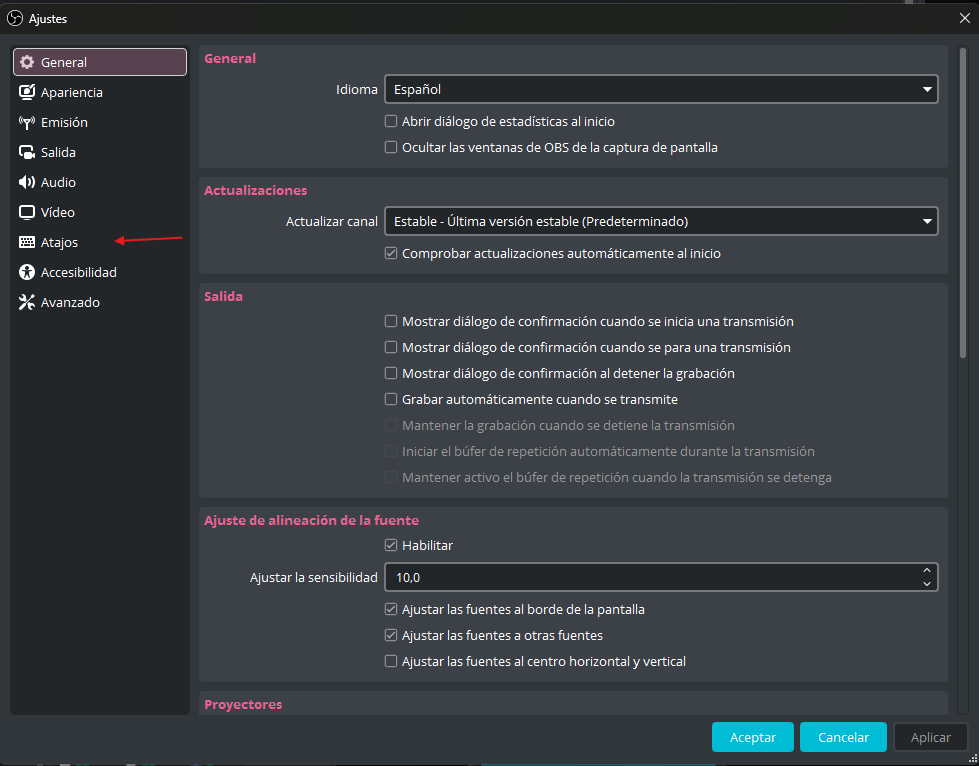
4. Find the 3 Trigglow hotkeys: Toggle, Enable and Disable.
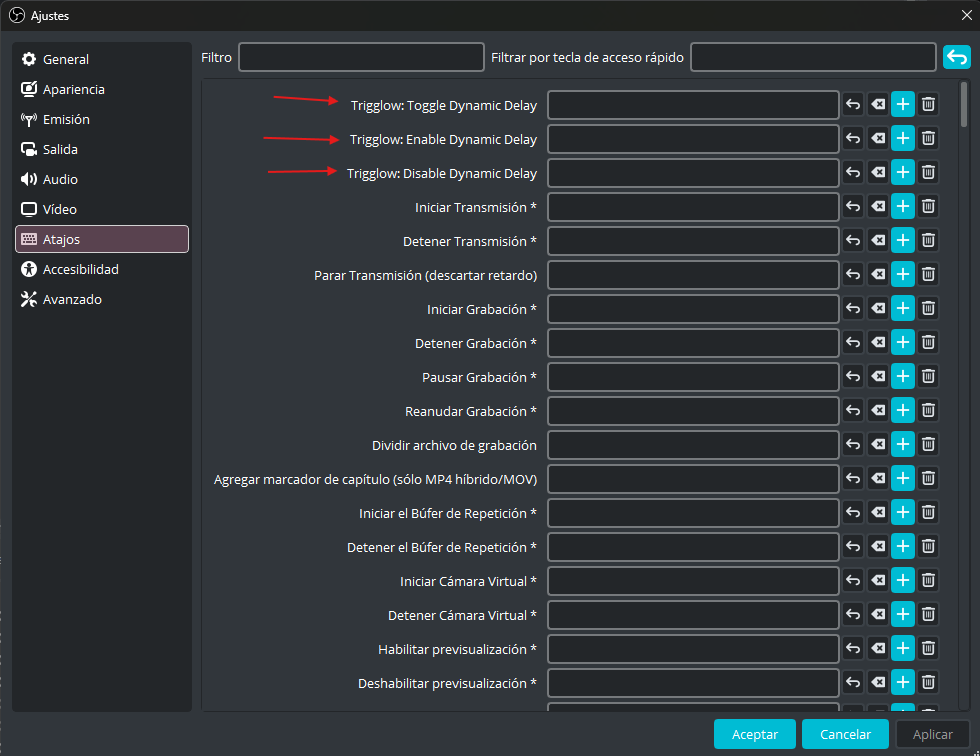
5. Click and assign your combination, for example Ctrl+Alt+Shift+'.
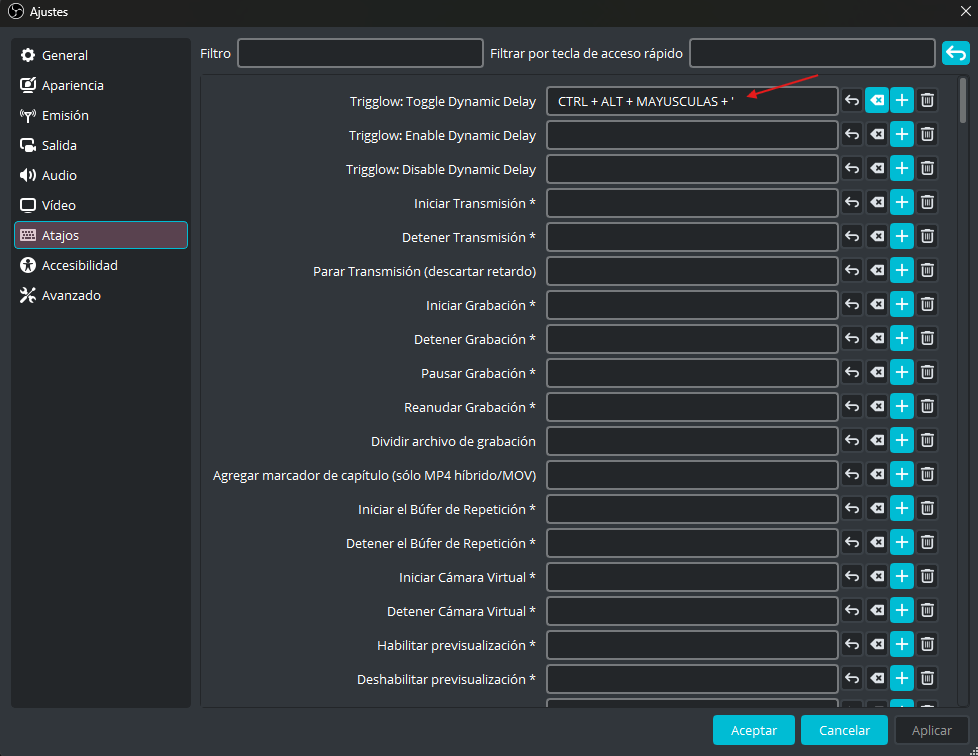
4. How to Set Up Your Stream DeckBind the same OBS hotkey to a physical button on your Elgato Stream Deck.
1. Drag the "Hotkey" action (System category) onto an empty key.
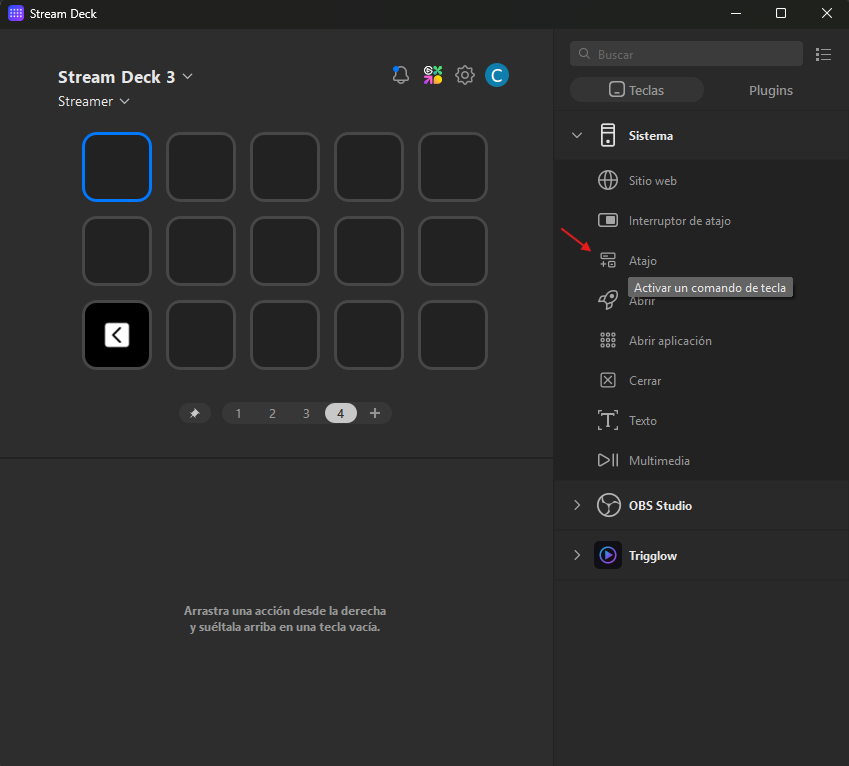
2. Give it a title and paste the same combination assigned in OBS, e.g. Ctrl+Alt+Shift+'.
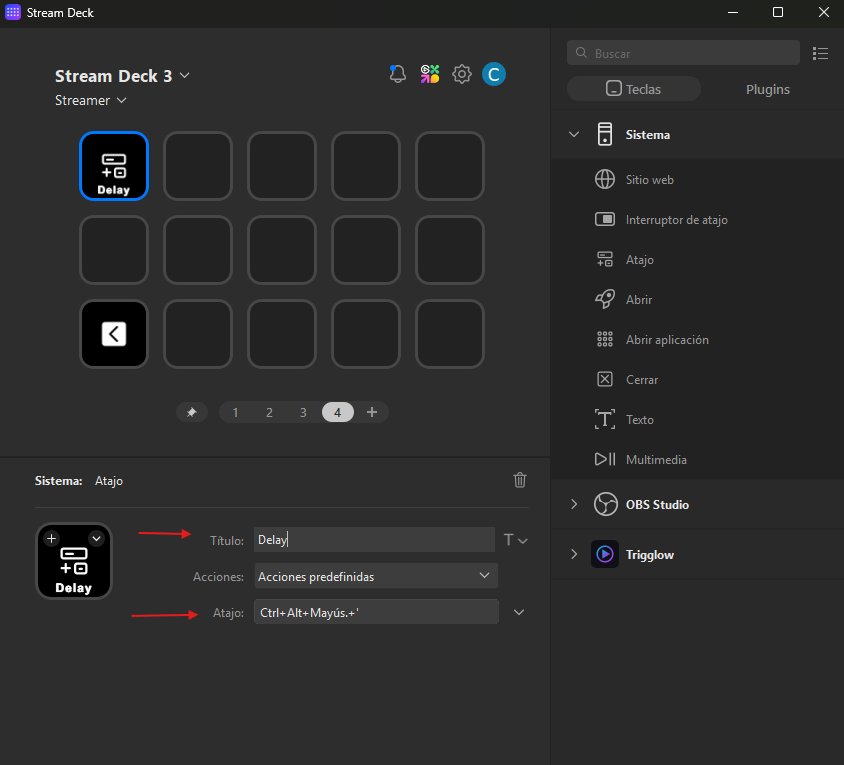
3. Customize the button icon from "Choose from file".
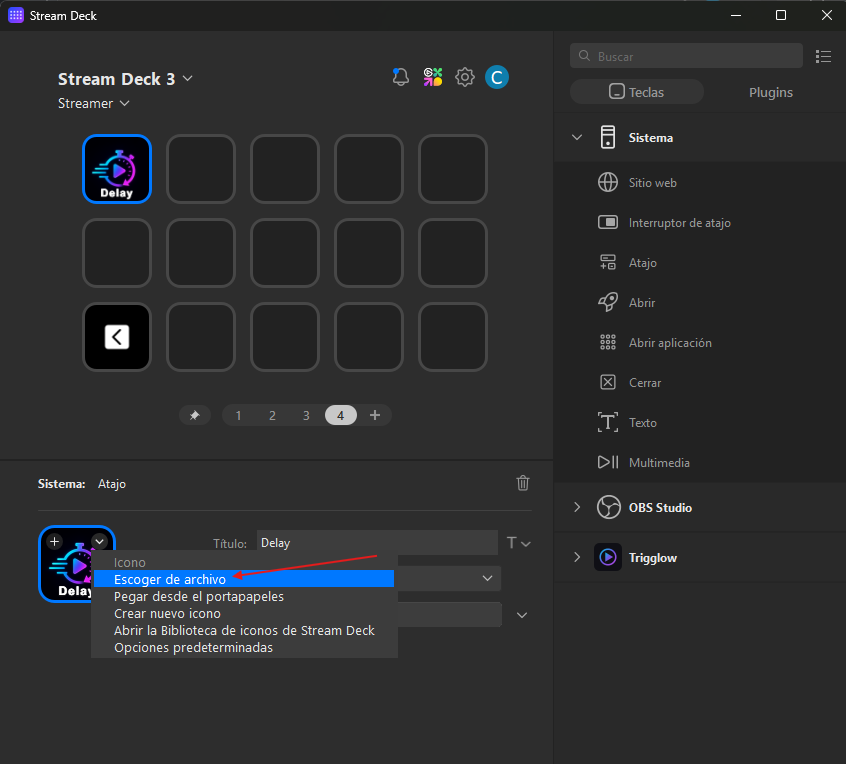
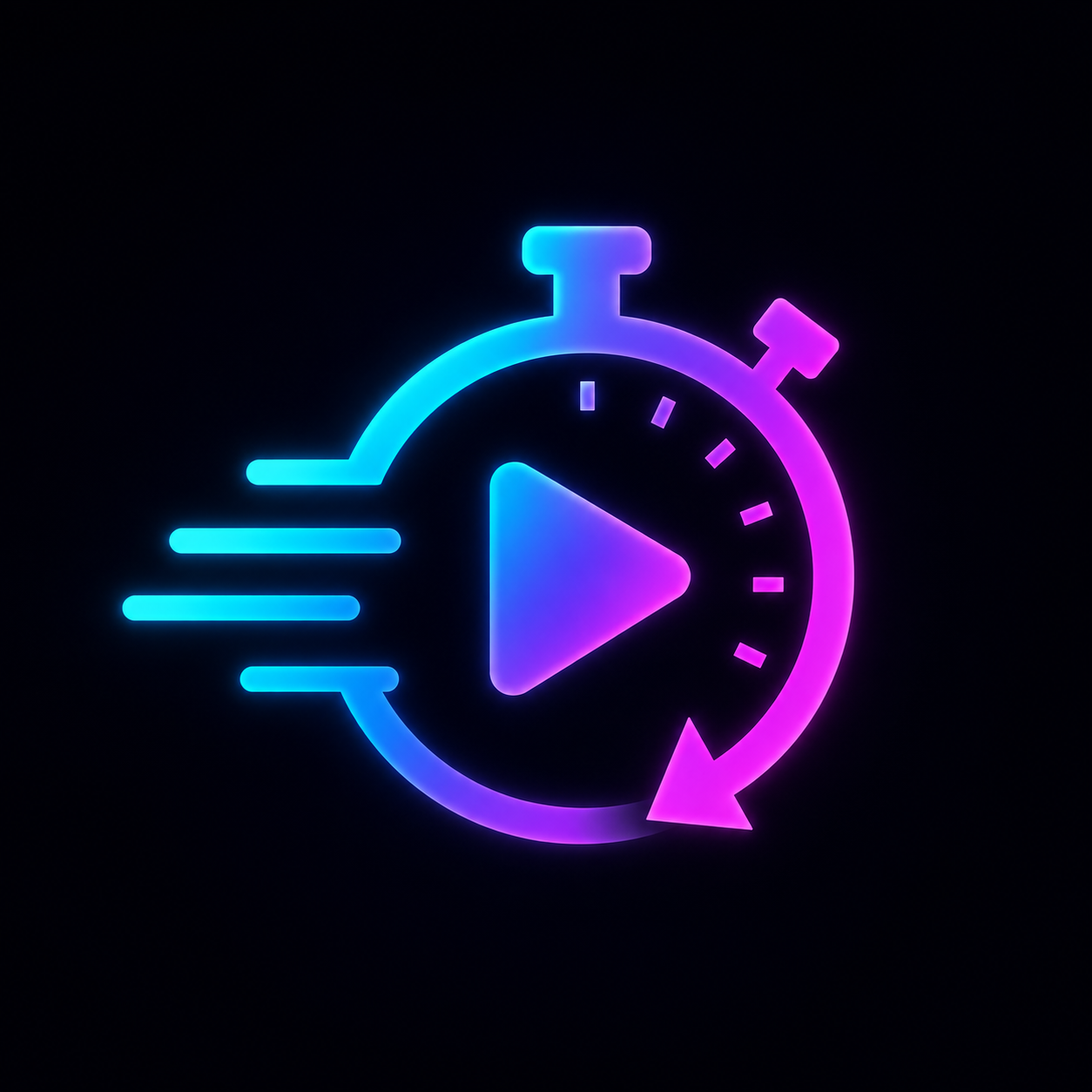
Official icon for your button
Download the image and select it in step 3 when choosing the icon in Stream Deck.
Free Download
Available Downloads
Download the version for your operating system.
Official installer (.exe)
Guided install in 2 clicks. Detects the OBS Studio folder automatically.
OBS Studio ≥ 31.1.0
We recommend at least 4 GB of free RAM for high-quality buffers.
Frequently Asked Questions from Streamers
We answer your questions about how Dynamic Delay works live.