Stream Deck
Control alerts, clips, chat, chat modes and song requests on Kick, Twitch and YouTube from your Stream Deck with the official Trigglow plugin: keys, Stream Deck + dials, the Neo infobar and ready-made profiles.
What it does: the official Trigglow plugin puts your overlay on physical keys. Skip or repeat an alert, hold the queue while you talk, drop a stream marker, clip a moment, post in chat, switch chat modes and run your song requests without leaving your game. It works with Kick, Twitch and YouTube, and most keys can act on all your platforms at once or on just one of them.
Requirements: a free Trigglow account, your Trigglow overlay added to OBS as a Browser Source, the Stream Deck app 7.6 or later on Windows 10 or later or macOS 12 or later, and Trigglow plugin 1.8.0 or later.
Install from the Elgato Marketplace (recommended): press the main button on
/stream-deck, which opens the Trigglow plugin on the Elgato Marketplace, and install it from there. The Stream Deck app adds a Trigglow category to the action list on the right.Install from the file: on the same page, open the other download options and get the
.streamDeckPlugin file, then double-click it. The Stream Deck app installs it the same way.Updating: a Marketplace install updates from the Stream Deck app. With the file, download the new version and double-click it again; your keys and their settings stay where they are. Stream Deck only replaces an installed plugin with a higher version, so opening an older file over a newer plugin changes nothing. The changelog linked on
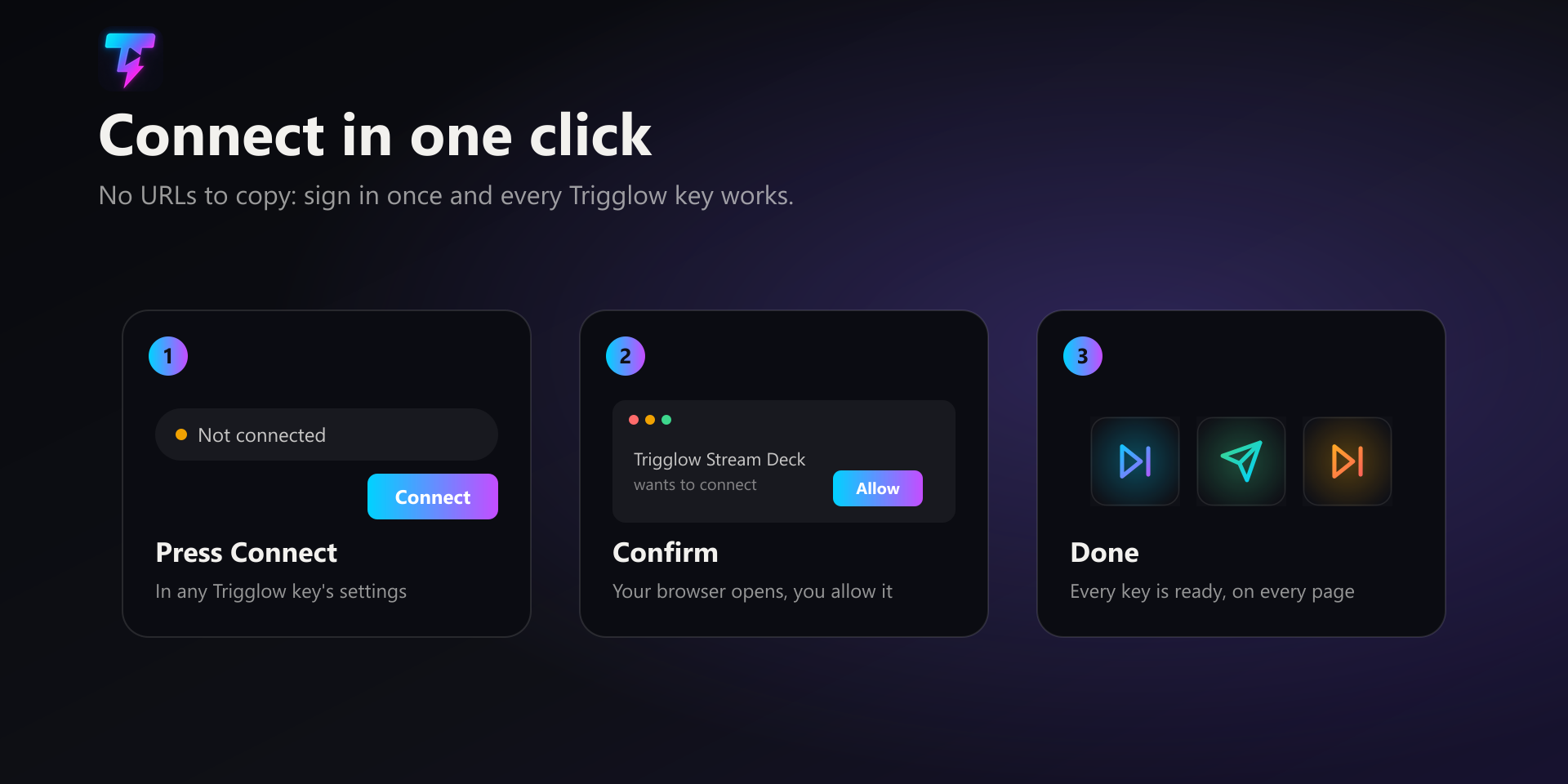
/stream-deck lists what each version adds.Connect: drag any Trigglow key onto your Stream Deck, or import a profile, and select the key. At the top of its settings there is an Account row. Press “Connect”: your browser opens on Trigglow, you sign in if needed and confirm. Back in Stream Deck the Account row shows you as connected, and every Trigglow key on every device and profile is ready, because they all share that one connection.
Reconnect and Disconnect: once connected, the same row offers “Reconnect”, which runs the browser confirmation again (for example after switching Trigglow accounts), and “Disconnect”, which unlinks the plugin; keys then show a warning triangle until you connect again. Connecting from the key settings is the only way to set the plugin up: there is no URL or code to copy.
Security: the plugin never sees or stores your password. It keeps only a control token in Stream Deck’s global settings. If you think that token leaked, for example because you shared a Stream Deck backup, write to support (trigglow.com/support) so we reset it, then press “Reconnect” in any key’s settings to get the new one.
Key settings panel: under the Account row each key shows only the fields it uses, plus a one-line description of what it does. Platform: alert keys and Stream marker offer All platforms, Kick, Twitch or YouTube; Send chat message offers all connected chats or one platform; Clear chat and the chat modes offer Kick and Twitch together or one of them; Create clip chooses where the clip comes from. Message: the text that Send chat message posts. Seconds: the Slow mode delay, from 3 to 120. Followed for: how long viewers must have followed you to talk in Followers-only chat (any follower, 10 minutes, 1 hour, 1 day or 1 week). Credits mode: whether Roll credits plays or hides the credits.
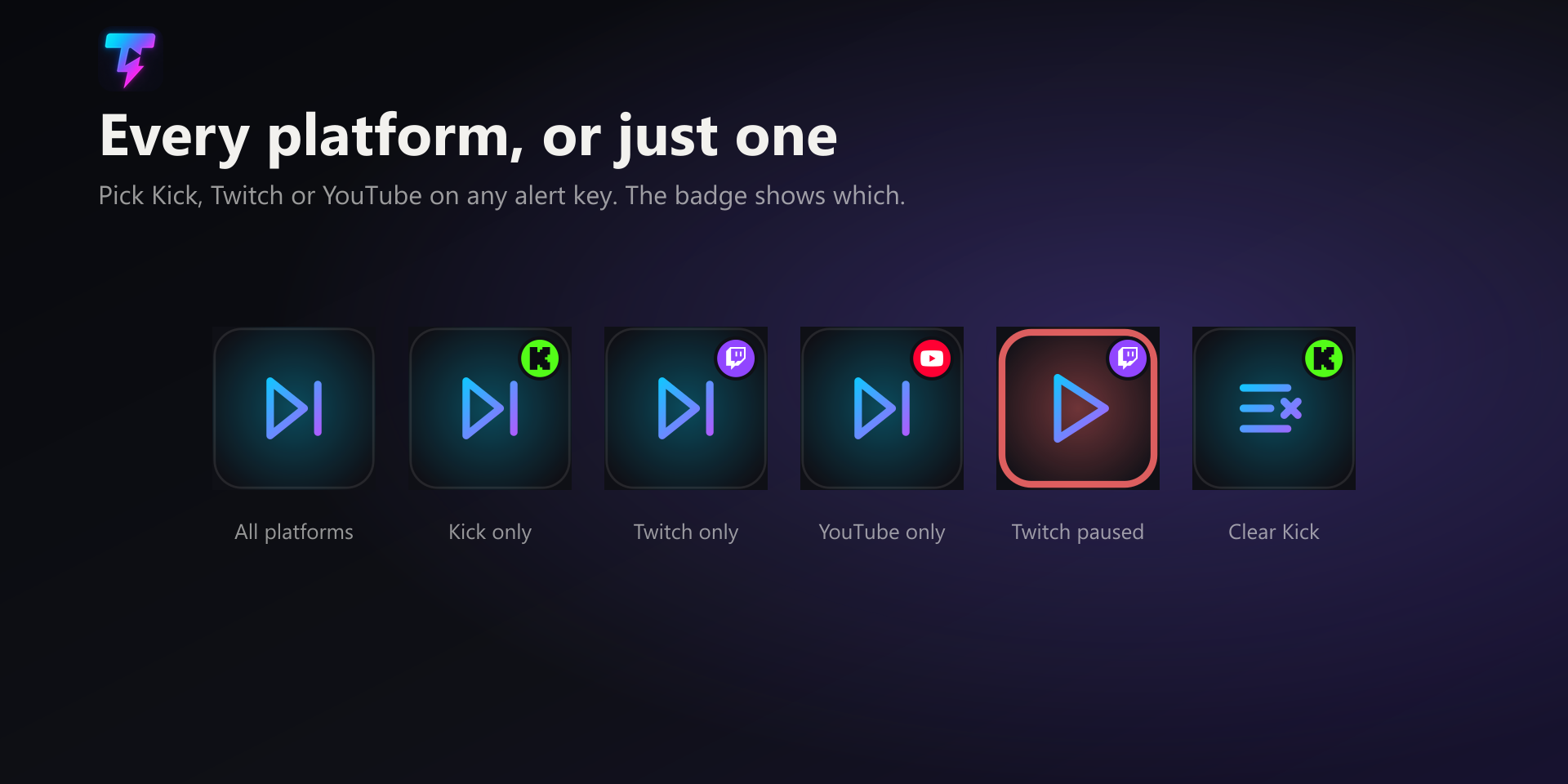
Alert keys: Skip alert removes the alert on screen. Repeat alert plays the last alert again. Pause / resume alerts stops the current alert and holds the queue until you press again. Mute / unmute alerts holds the queue but lets the alert on screen finish. Clear alert queue empties everything that is waiting. Pause and Mute are held toggles: while they are on, the key shows a red ring, so you can see at a glance that alerts are on hold.
Per-platform alert keys: set to All platforms, a key acts on every alert. Set to one platform, it only touches that platform’s alerts. Skip · Twitch skips the Twitch alert on screen, or the next Twitch alert waiting if something else is showing; Pause · Kick holds Kick alerts while Twitch and YouTube keep playing. A key set to one platform shows that platform’s logo in its corner. Tips, store purchases and test alerts do not come from a platform, so only keys set to All platforms answer to them.
Stream keys: Create clip saves a clip of what just happened. Automatic uses the platform you are live on; you can also pick Kick or Twitch, or OBS replay to save the OBS replay buffer through the Trigglow desktop app. Stream marker saves a moment in your stream summary and in the YouTube chapters built from it; on Twitch it also adds a native stream marker. Markers are free on every plan. Roll credits plays the end credits on your overlay, or hides them, depending on its mode. Emote rain starts an emote rain on your overlay.
Chat keys: Send chat message posts your saved message in Kick, Twitch and YouTube chat, or in only one of them; the Trigglow chat bot posts it. Clear chat and the chat modes (Followers-only chat, Subscribers-only chat, Emote-only chat, Slow mode and Remove chat restrictions) work on Kick and Twitch only, because YouTube has no API for them. Twitch chat modes need Twitch reconnected once in Settings so Trigglow gets the moderation permission. A chat mode that is on shows a red ring on its key.
Read-aloud keys: Alert read-aloud on / off turns the reading of alert messages on or off. Skip read-aloud message stops the message being read right now.
Song request keys: Song: next, Song: pause / play, Song: volume up, Song: volume down, Song: clear queue and Song requests on / off. They control the player your song requests use, either the YouTube player in your overlay or Spotify.
New in 1.8.0, Stream Deck + dials: three dial actions, each showing its current value on the touch strip. Song requests dial: turn to change the volume, press the dial or tap the strip to pause or play. Alerts dial: turn right to skip, turn left to repeat the last alert, press to pause or resume alerts; like the keys, it can be set to one platform. Slow mode dial: turn to set the delay from 3 to 120 seconds, press to turn slow mode on or off; it works on Kick and Twitch.
New in 1.8.0, Stream Deck Neo infobar: the Now playing action shows the song playing from your song requests, with its title and who requested it, on the Neo’s infobar. It is display only; use the song request keys to control playback.
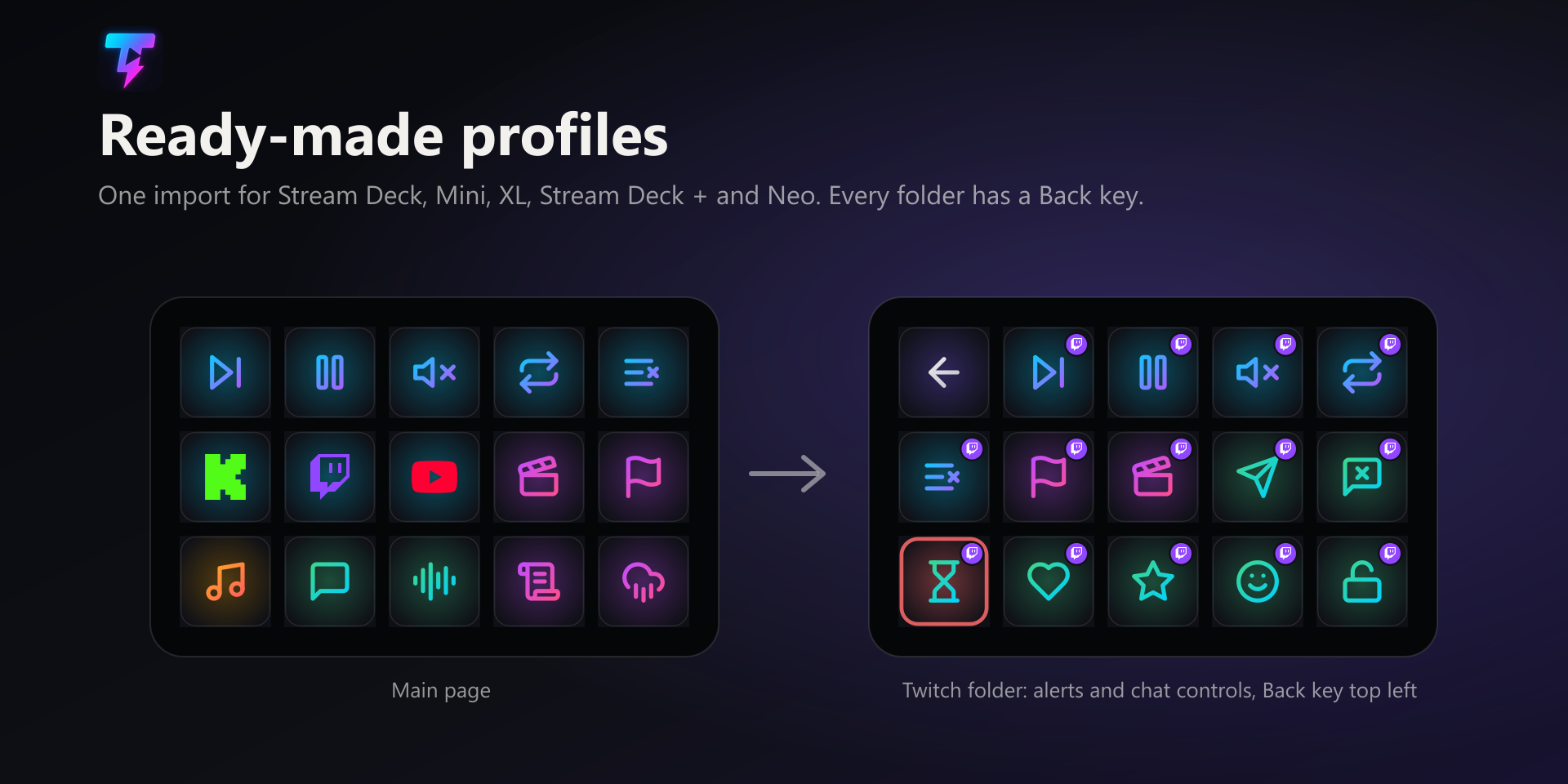
Ready-made profiles: there is one for each device, Stream Deck (15 keys), Stream Deck Mini, Stream Deck XL, Stream Deck + and Stream Deck Neo, to download directly on
/stream-deck. The main page holds the alert keys for all platforms, the stream, song and read-aloud keys, and a folder for each platform. Each platform folder has that platform’s alert and chat controls, with the keys already set to it. On the Mini, +, Neo and XL the chat controls sit in a Chat sub-folder inside the platform folder. Every folder has a Back key at the top left.Importing a profile: double-click the downloaded file and the Stream Deck app asks where to add it. The same profiles also come inside the plugin. A profile only places the keys: connect the plugin once from any key and every key in it works.
Languages: by default the plugin follows the language of the Stream Deck app (English, German, Spanish, French, Japanese, Korean, Simplified or Traditional Chinese). To use another of Trigglow’s languages (Portuguese, Catalan, Valencian, Basque, Galician, Hindi, Italian, Russian or Ukrainian), pick it in “Language” at the bottom of any key’s settings: the settings panel, the dial texts and the Neo infobar switch to it. The action names in Stream Deck’s list stay in the app’s language, because Stream Deck only has those eight.
Troubleshooting, a warning triangle on a key: the plugin is not connected, so select the key and press “Connect”. If it only happens on Twitch chat modes, reconnect Twitch once in Settings. If Clear chat or a chat mode fails on Kick, make the Trigglow bot a moderator of your channel.
Troubleshooting, a key showing “?”: the plugin is missing or older than the profile. Install plugin 1.8.0 or later from the Elgato Marketplace or with the file on
/stream-deck.Troubleshooting, nothing happens on the overlay: the keys act through your overlay, so the Trigglow Browser Source must stay open in OBS. Send a test alert from Trigglow and press Skip: if the alert goes away, everything is connected.
Steps
- 1Install the Trigglow plugin from the Elgato Marketplace (main button on
/stream-deck) or with the.streamDeckPluginfile. - 2Import the ready-made profile for your device, or drag Trigglow keys onto your Stream Deck.
- 3Select any Trigglow key, press “Connect” in its settings and confirm in the browser window that opens.
- 4Set a key’s platform in its settings if it should act on Kick, Twitch or YouTube only.
- 5Send a test alert from Trigglow and press Skip to check that everything works.
Note
The plugin stores only a control token, never your password. If it leaks, ask support to reset it and press “Reconnect” in any key’s settings.
Tip
Import the ready-made profile for your device to get every key in place at once, with a folder per platform and a Back key in each.
Warning
Clear chat and the chat modes work on Kick and Twitch only. Twitch must be reconnected once in Settings, and on Kick the Trigglow bot must be a moderator of your channel.
Note
Dials, the Neo infobar and the keys on this page need plugin 1.8.0 or later. Stream Deck only replaces the plugin with a higher version.